2026-07-16
20 Things You Can Do to Administer Open WebUI
Open WebUI has two separate control surfaces: the per-chat / per-model Controls panel (system prompt, advanced sampling params) and the global Settings / Admin Panel(users, connections, security, tools). This doc walks through 20 concrete things you can configure across both, with a one-line example for each so you can tell at a glance what "good" looks like.
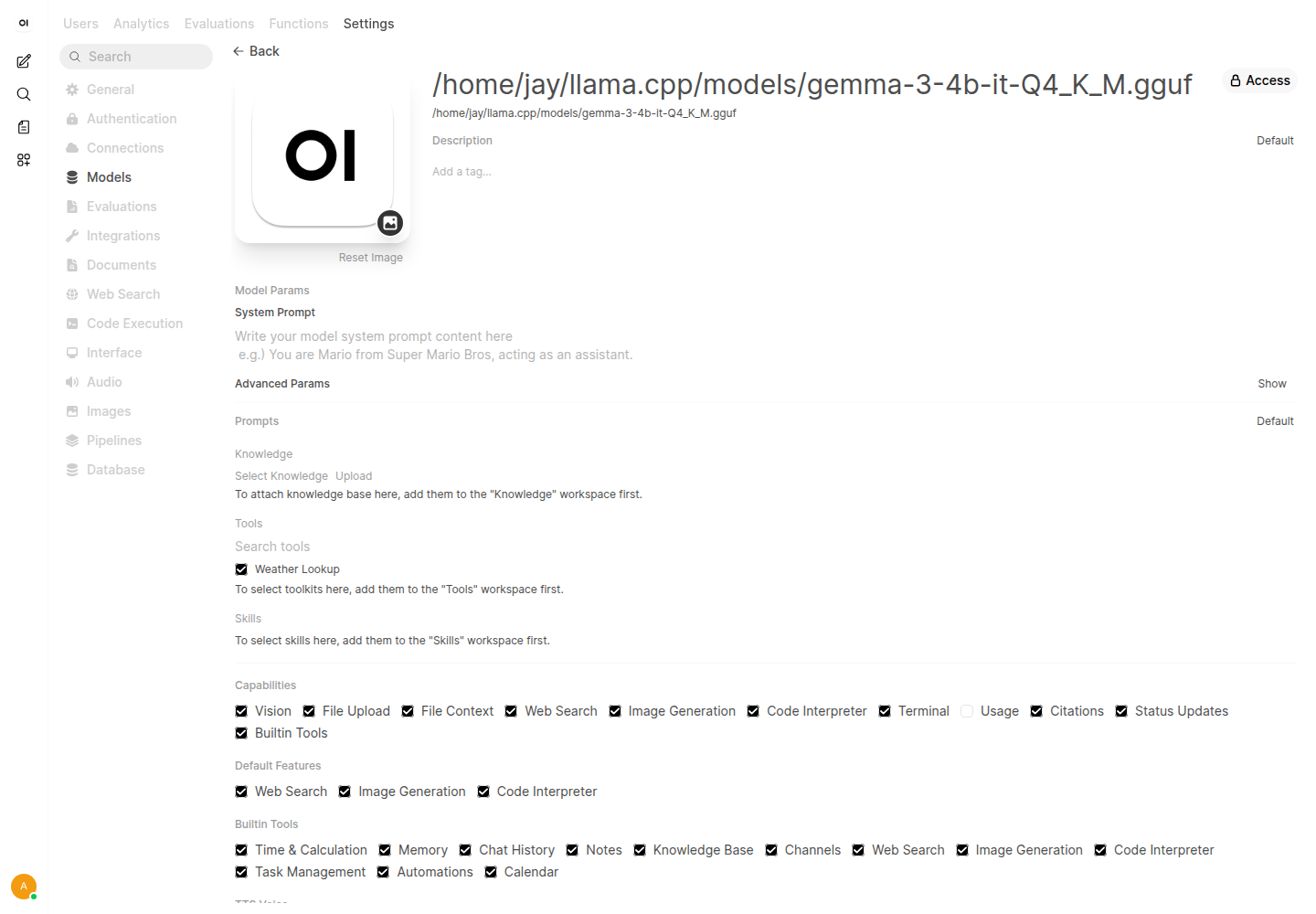
Part A: The Controls Panel (1–17) — per-chat model behavior
Open the Controls panel from the icon to the right of the message box (or the sliders icon on the model name) to reach System Prompt and Advanced Params. Anything set here overrides the model's and the instance's defaults for the current chat only.
1. System Prompt
Free-text instructions prepended to every message in this chat — persona, tone, constraints, output format. This is the single highest-leverage control in the whole panel.
You are a terse Python tutor. Always answer with a code block first, then a 2-sentence explanation. Never apologize.2–17. Advanced Params
Everything below defaults to "Default", meaning it falls through to the model/global setting. Toggle a row on to override it just for this chat.
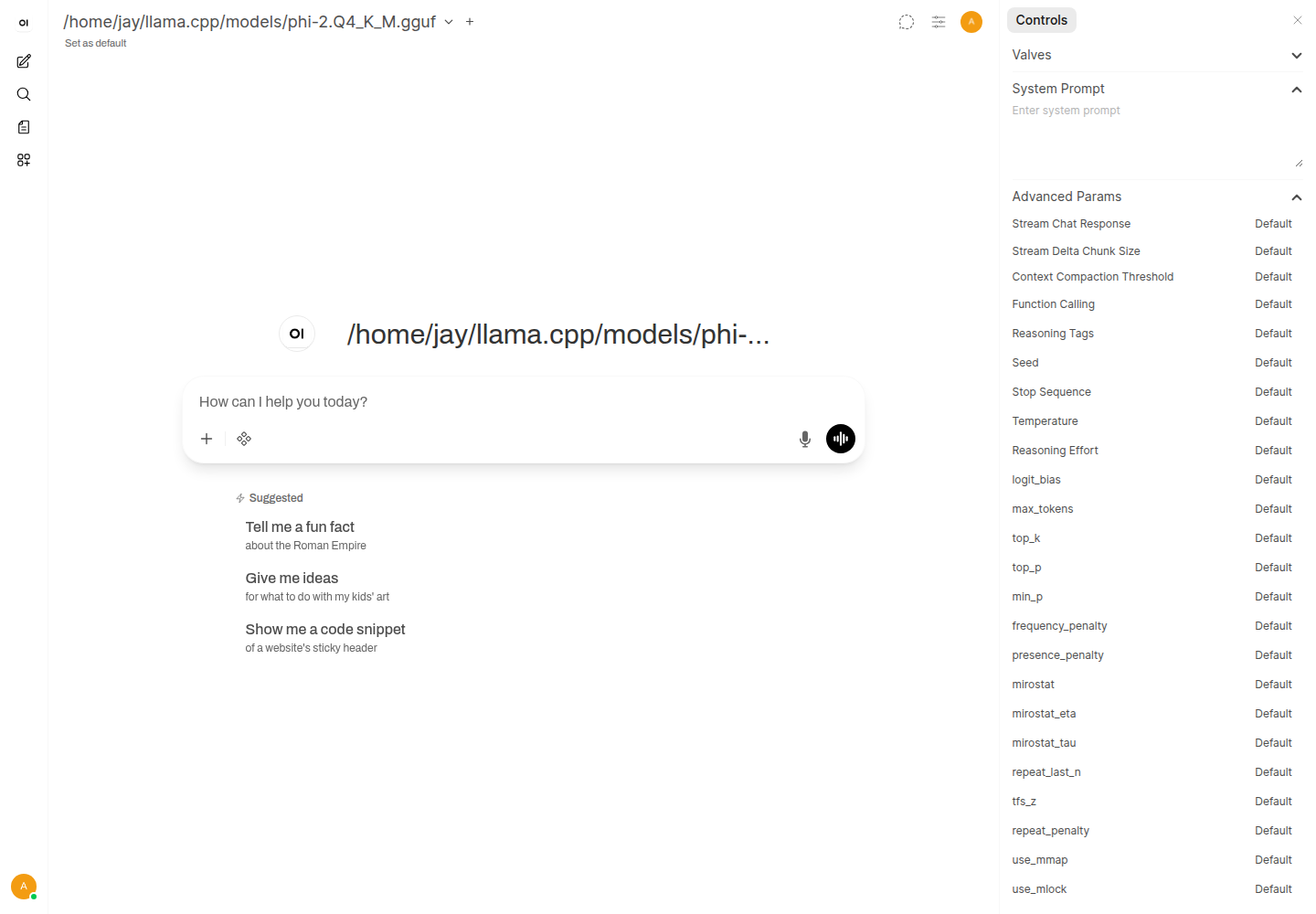
| Control | What it does | One-liner example |
|---|---|---|
Context Compaction Threshold | Token count at which Open WebUI starts summarizing/trimming older turns to keep the conversation under the model's context window. Overriding it lower than the global max forces earlier compaction for this chat. | 8000 — start compacting well before a 32K-context model fills up |
Function Calling | Whether the model is allowed to call enabled Tools natively, and whether tool selection is automatic or requires the user to pick tools manually per message. | "Native" — let the model decide when to call a connected tool |
Reasoning Tags | Which XML-style tags (e.g. <think>...</think>) the UI should parse out of the raw model output and render as a collapsible "thinking" block instead of visible chat text. | think — hide DeepSeek-R1-style reasoning inside a collapsible section |
Seed | Fixes the RNG seed for sampling so the same prompt + params reproduce the same output. Leave default/blank for natural variation between runs. | 42 — get the identical completion every time you re-run this prompt |
Stop Sequence | One or more strings that immediately end generation the moment the model outputs them — useful for chat-format models that otherwise keep hallucinating extra turns. | \n\nUser: — stop before the model starts writing your next message for you |
Temperature | Overall randomness of token selection. Near 0 is deterministic and repetitive; near 1–2 is more creative but more error-prone. | 0.2 — near-deterministic answers for factual/coding tasks |
Reasoning Effort | Passed through as reasoning_effort to providers that support it (e.g. OpenAI o-series); tells the model how much hidden chain-of-thought budget to spend. No effect on most local/Ollama models. | "high" — for a hard multi-step math problem worth the extra latency |
logit_bias | Per-token bias map that boosts or suppresses specific token IDs before sampling — the lowest-level way to ban or force particular words. | {"50256": -100} — hard-ban a specific token from ever being generated |
max_tokens | Hard cap on how many tokens the model may generate in its reply, regardless of how it's going. | 500 — cap a chatbot's replies to keep answers skimmable |
top_k | Restricts sampling to only the K most probable next tokens at each step. Lower = safer/more conservative, higher = more varied. | 40 — a common conservative default for factual Q&A |
top_p | Nucleus sampling: samples only from the smallest set of tokens whose cumulative probability reaches P. Most practitioners tune this instead of top_k. | 0.9 — keep the top 90% probability mass, drop the long tail |
min_p | Discards any token whose probability is below min_p × (probability of the most likely token) — a relative floor instead of top_k's fixed count. | 0.05 — cut tokens under 5% of the top candidate's likelihood |
frequency_penalty | Penalizes tokens proportionally to how many times they've already appeared in the output so far, discouraging repetition. | 0.4 — stop a model from repeating the same phrase every paragraph |
presence_penalty | Flat penalty applied to any token that has appeared at all, encouraging the model to introduce new topics/words rather than repeat itself. | 0.6 — push a brainstorming chat toward more varied ideas |
mirostat | Enables an alternative adaptive sampler (mode 1 or 2) that targets a constant "surprise" level instead of using top_k/top_p, often giving more consistent long-form output. | 2 — use Mirostat v2 for a long generated story instead of top_p |
mirostat_eta | Learning rate for how fast Mirostat adjusts its sampling toward the target surprise (tau) as it generates — higher reacts faster, lower is smoother. | 0.1 — the standard learning rate most guides recommend |
top_p or min_p before top_k — most practitioners find nucleus/min-p sampling more predictable, and mixing three samplers at once makes behavior hard to reason about.Part B: Settings & Admin Panel (18–20) — instance-wide controls
Click your profile avatar (top-right) to reach two different menus: Settings (your personal preferences) and Admin Panel (visible only to admin accounts — controls the whole instance for every user).
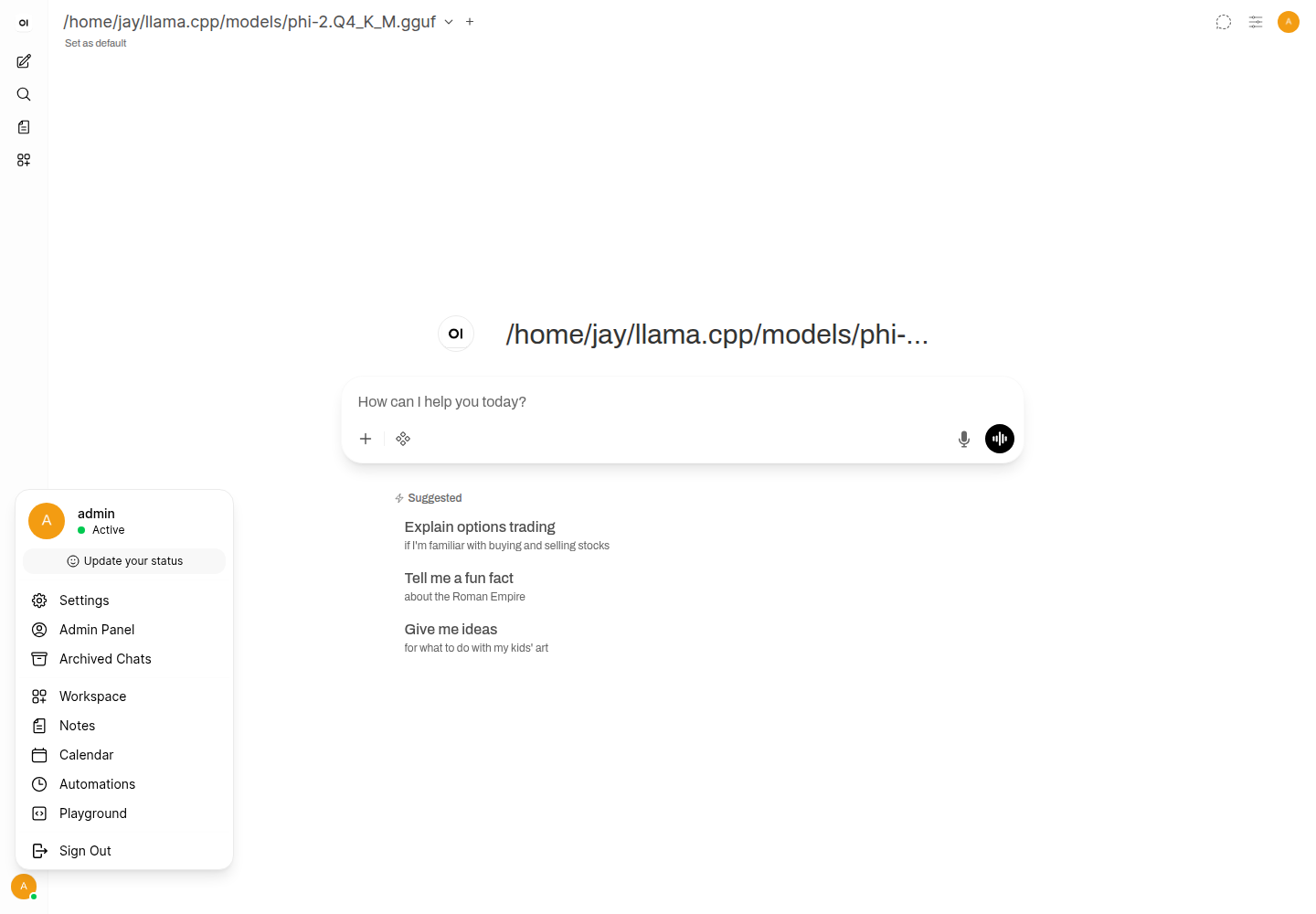
18. Settings (personal, per-account)
Your own preferences layered on top of whatever the admin has enabled instance-wide — changing these never affects other users.
- Account — name, password, profile photo, and your personal API key/JWT token for scripting against the Open WebUI API.
- General — default UI language, theme (light/dark/OLED), and notification sounds.
- Interface — chat bubble style, whether code blocks auto-render, landing page behavior, and default model shown for new chats.
- Personalization / Memory — free-text facts about you (role, preferences, ongoing projects) that get quietly injected into future conversations for more tailored answers.
- Chats — bulk export/import/archive/delete all of your own chat history.
- Audio — speech-to-text engine, text-to-speech voice, and auto-send-after-silence for voice input.
Example: under Personalization, add "I teach a Saturday AI bootcamp and mostly ask about llama.cpp and Open WebUI setup." so future answers assume that context without you repeating it every chat.
19. Admin Panel (instance-wide, admins only)
The control plane for the whole deployment — every change here applies to all users, so treat it with the same care as production config.
- Users — approve pending sign-ups, assign roles (admin/user/pending), and organize users into groups for access control.
- Evaluations — an Elo leaderboard from head-to-head "Arena" model comparisons, plus a log of thumbs-up/down feedback tied to specific chats.
- Functions — install custom Python tools (callable functions), filters (pre/post-process messages), or pipes (custom model backends).
- Settings → Connections — register Ollama, OpenAI-compatible, or other backend API endpoints (e.g. your llama.cpp server URL) that models pull from.
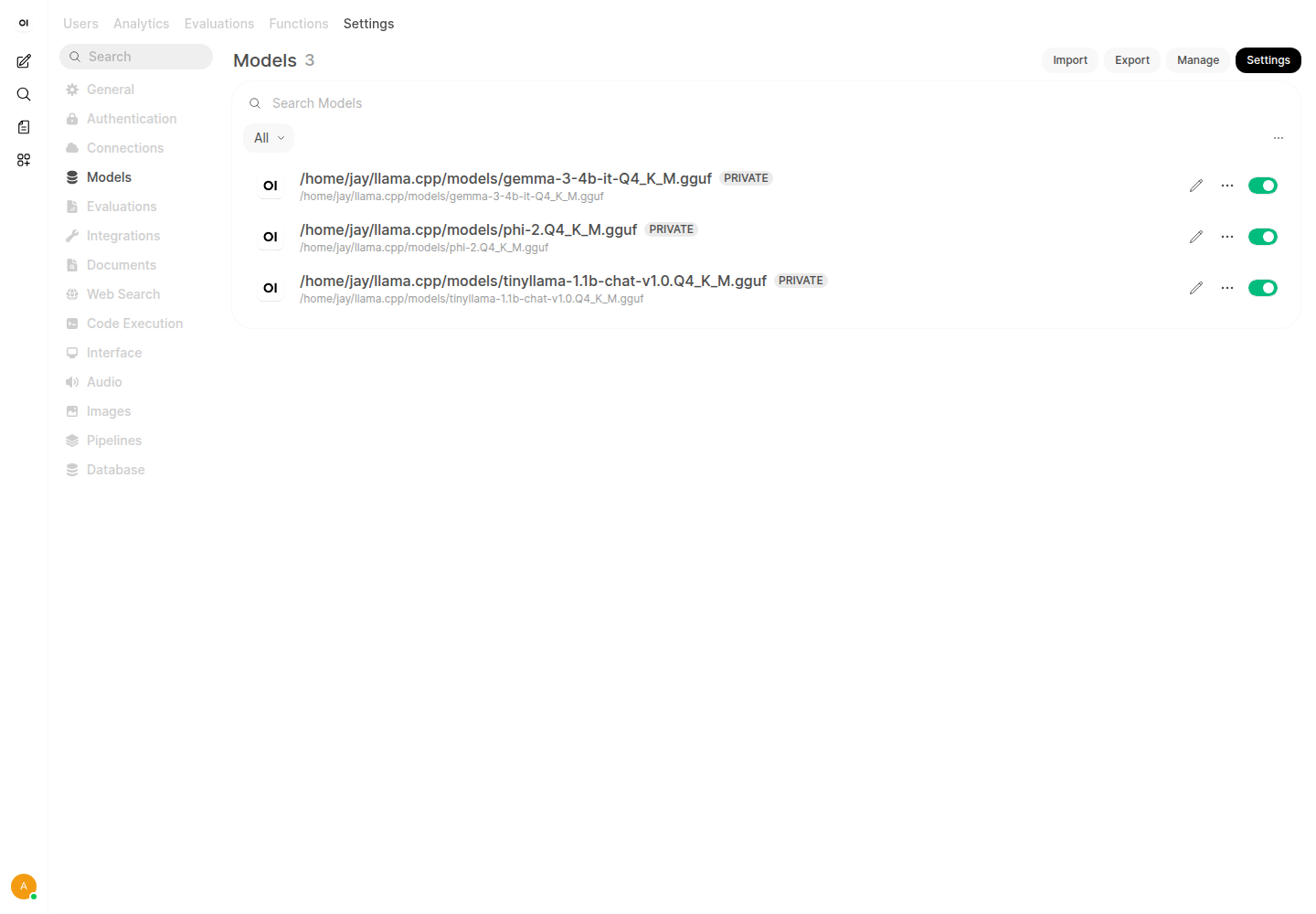
- Settings → Models — set the global default system prompt and Advanced Params baseline that every model falls back to unless overridden.
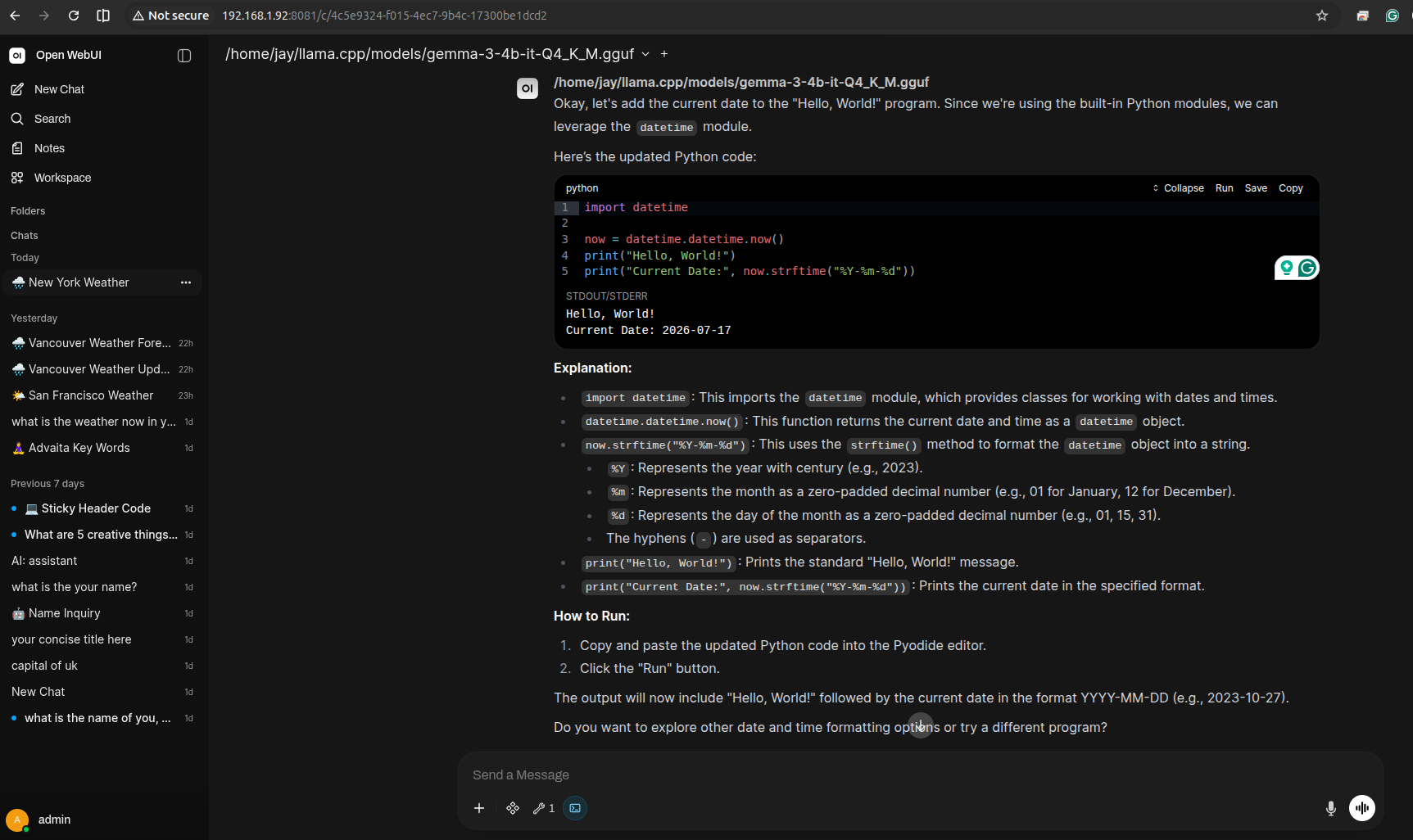
- Settings → Code Execution — instance-wide toggle for the "Run" button that appears on Python code blocks in chat. By default it executes via Pyodide, a full CPython interpreter compiled to WebAssembly that runs entirely client-side in the browser tab — no local Python install, subprocess, or server involved, and it's sandboxed with no real filesystem/network access. This is independent of whichever LLM answered the message. Point "Code Interpreter Engine" at a real Jupyter server instead if you need pip-installed packages or actual file I/O.
- Settings → Interface — instance-wide feature toggles: web search, image generation, voice input.
- Settings → Security — SSO/OAuth configuration, whether public sign-up is open, and session/password policies.
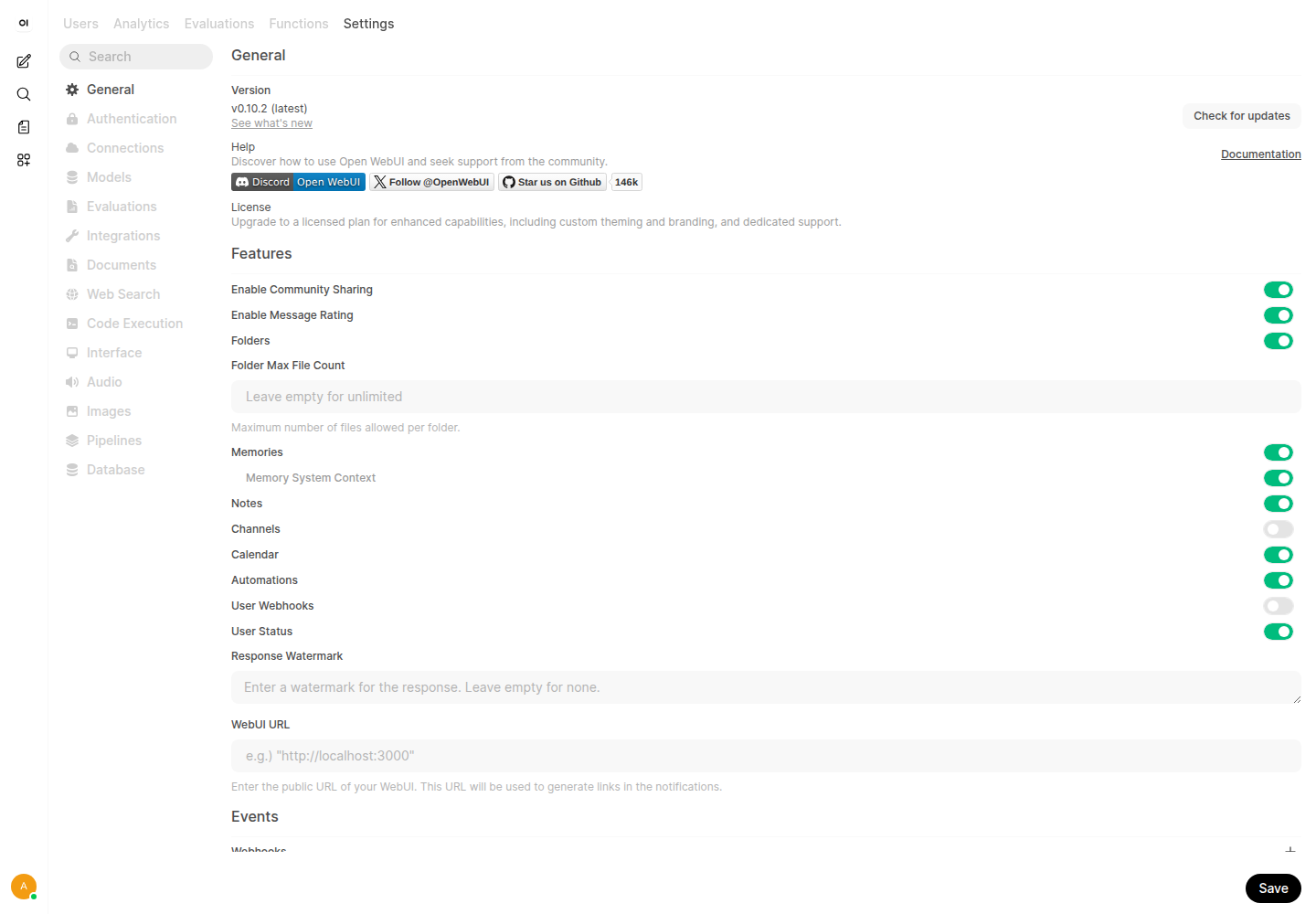
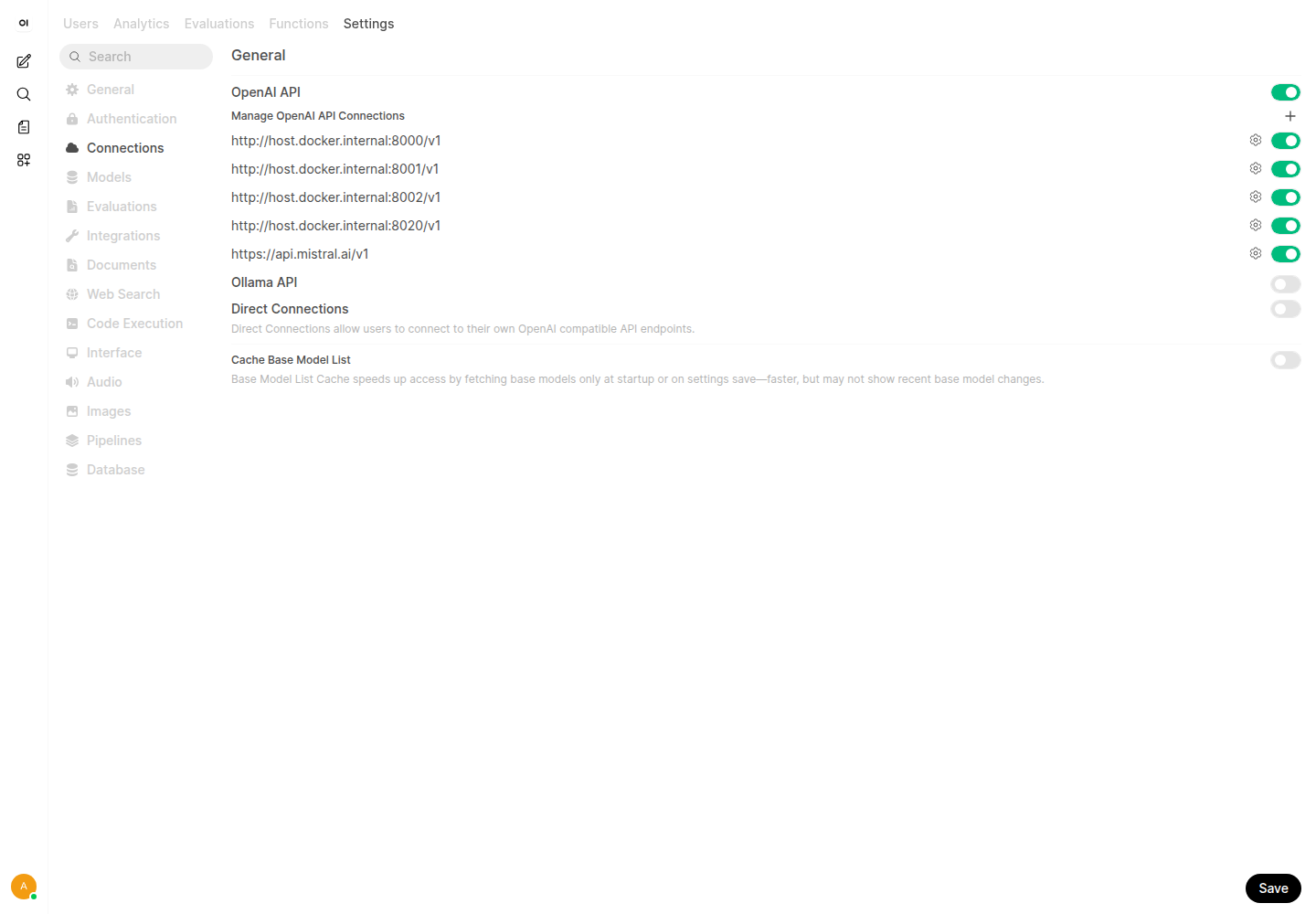
Example: under Settings → Connections, add http://localhost:8080/v1 as an OpenAI-compatible endpoint pointing at your local llama.cpp server, so every user in the instance can select that model without re-entering the URL.
20. The sidebar shortcuts: Search, Archived Chats, Workspace, Notes, Calendar, Automations, Playground
Search and Notessit directly in the main sidebar (below "New Chat"); Archived Chats, Calendar, Automations, and Playground are one click further, under the profile menu. Either way, these give quick access to features that would otherwise be buried:
- Search — full-text search across the titles and message contents of your own chat history; does not search other users' chats or admin-wide content.
- Archived Chats — chats you've archived out of the main sidebar list; still searchable, not deleted.
- Notes — a lightweight built-in notes editor, separate from chat history, for jotting things down without starting a conversation. Click "+" to create one; each note is its own Markdown document with an optional linked chat.
- Calendar — a scheduling view for anything Open WebUI has tracked with a date (e.g. scheduled tasks), not a full calendar app.
- Automations — scheduled or triggered tasks (e.g. run a prompt against a model on a recurring basis) without a human starting the chat.
- Playground — a raw completion/chat testing surface for trying a model and params directly, outside of the normal saved-chat flow — handy for quickly A/B-testing an Advanced Params change before committing it to a Workspace Model preset.
Workspace, tab by tab
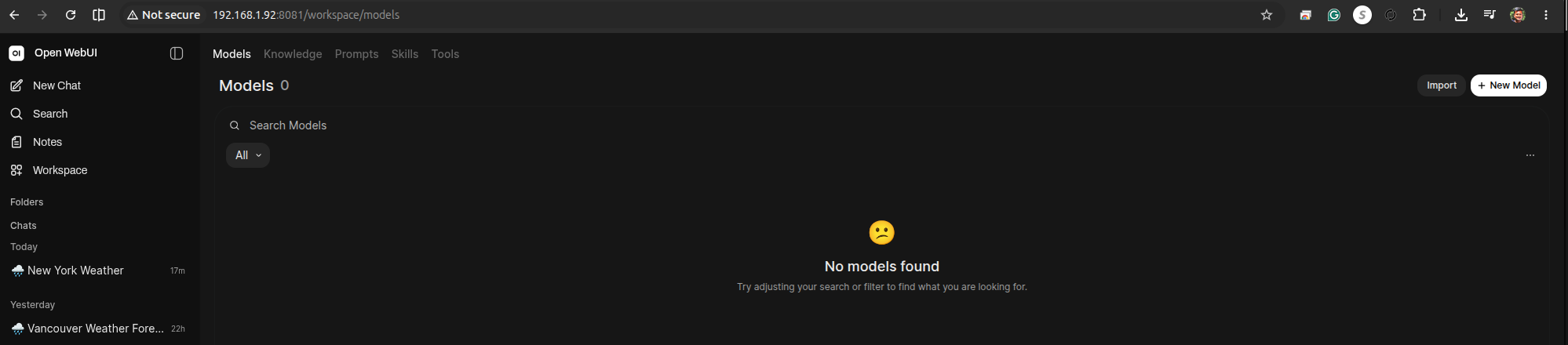
Workspaceis the shared library other users on the instance can also see and use (once an admin or the item's owner shares it). It has five tabs:
- Models — custom presets: a base model plus a bundled system prompt, Advanced Params, and enabled Tools/Skills, saved under its own name so students pick one preset instead of reconfiguring settings every chat.
- Knowledge — document collections (PDFs, text, markdown) that get chunked and embedded for RAG; attach a Knowledge collection to a Model so every chat with that preset can retrieve from it.
- Prompts — saved text templates (not full Models) inserted into the message box via a
/slash command, for prompts you reuse across different models. - Skills — composable capability bundles that group Tools, Knowledge, and instructions into one reusable unit, attachable to a Model like a single toggle instead of wiring up each Tool individually.
- Tools — native Python functions the model can call (see the Tool Calling & MCP doc for writing and enabling one).
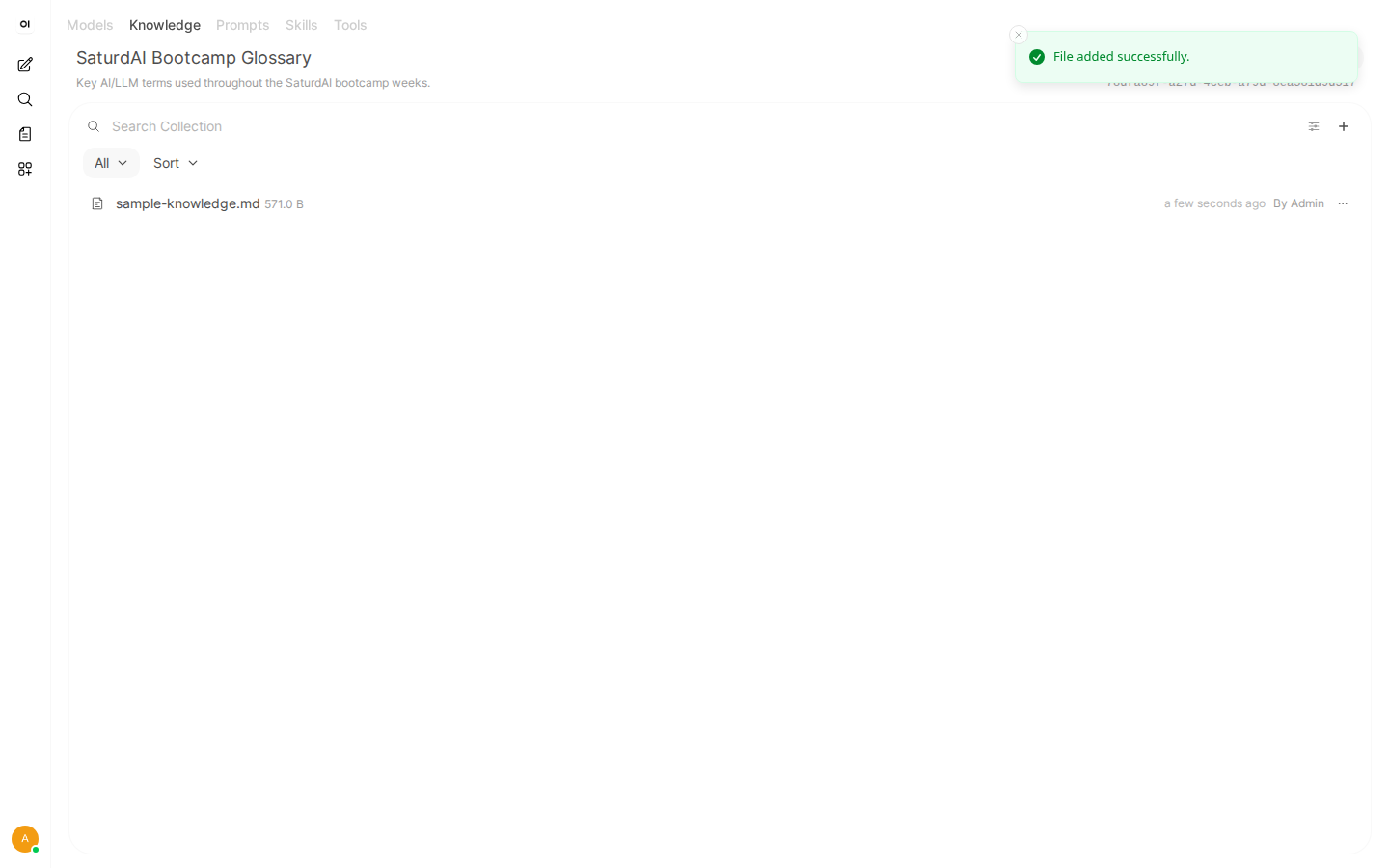
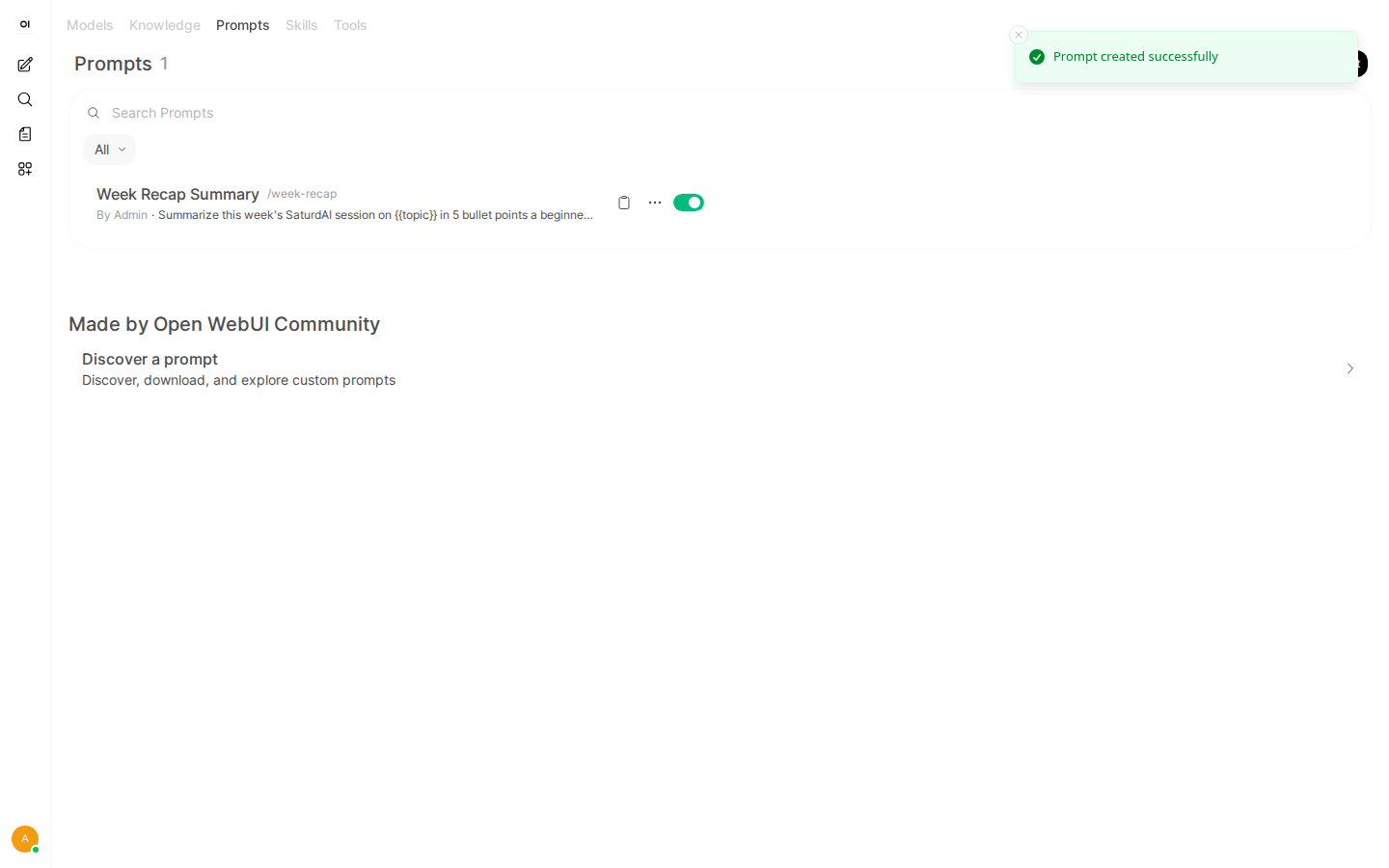
/command, body with {{variable}} placeholders) that any user can insert into the message box by typing its slash command.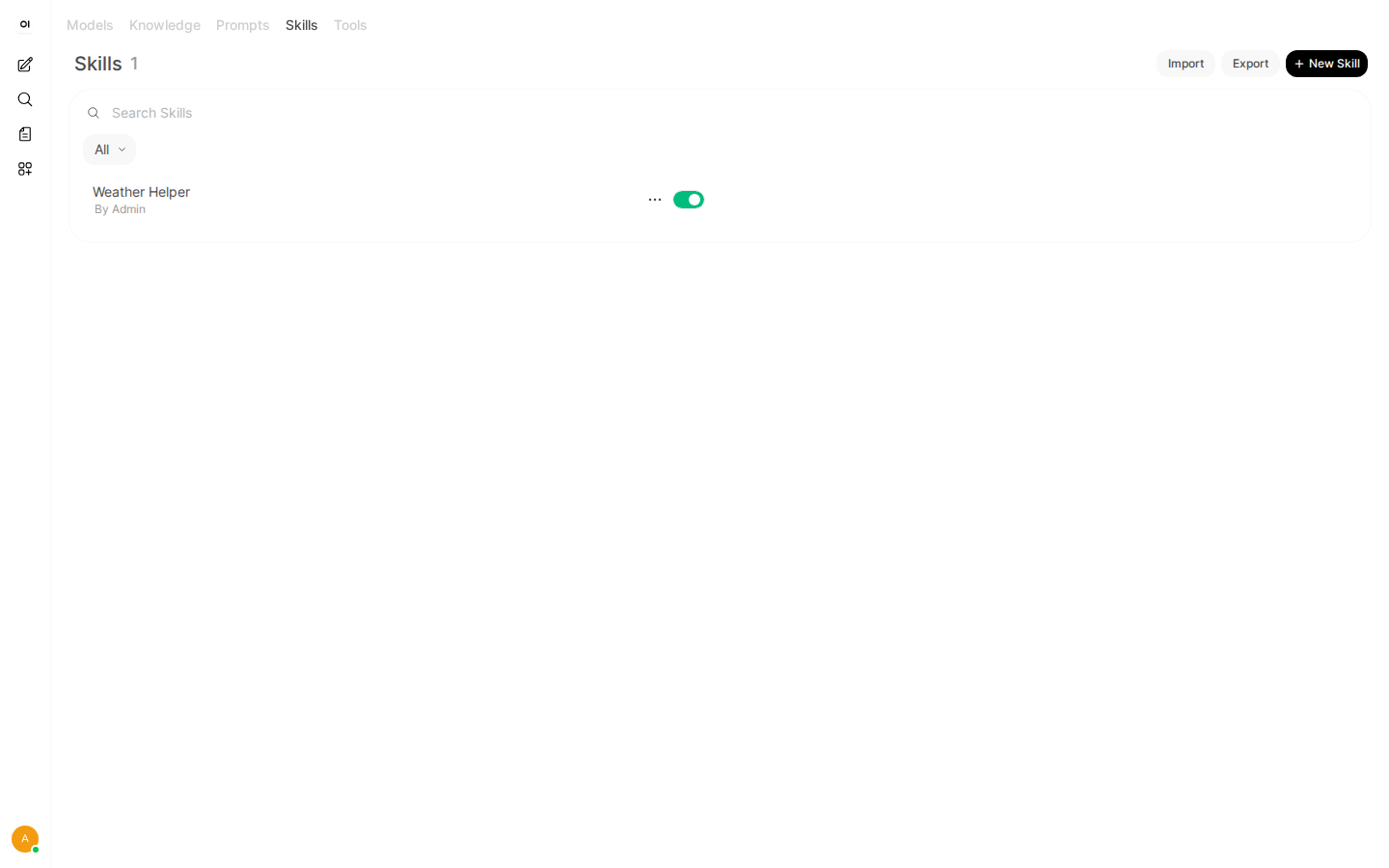
Example: build a Workspace Modelcalled "Weather Bot" that bundles the system prompt from item 1, temperature: 0.3, and the Weather Lookup tool from the Tool Calling & MCP doc into one selectable preset, then test it in Playground before rolling it out to students.
Summary
Sampling and prompt behavior (1–17) live in the per-chat Controls panel and cascade down from global → model → chat. Instance-wide behavior — who can log in, which backends exist, which features are even visible — lives in the Admin Panel. Personal preferences that don't affect anyone else live in Settings. When something "isn't working," check in that order: is it disabled in Admin Panel → Settings first, before assuming a per-chat override is the problem.